POS Awesome In Delivery Charges
###POS တွင် Delivery Charges ထည့်မည်ဆိုပါကဦးစွာပထမ Chart of Account သို့သွားပါ။
- Expenses အောက်တွင် Delivery Service အတွက် Account တစ်ခုကိုထည့်ပါ။

- Delivery Service ထားမည့် Group Account ကိုနှိပ်ပါ။

- Add Child ကိုနှိပ်ပါ။
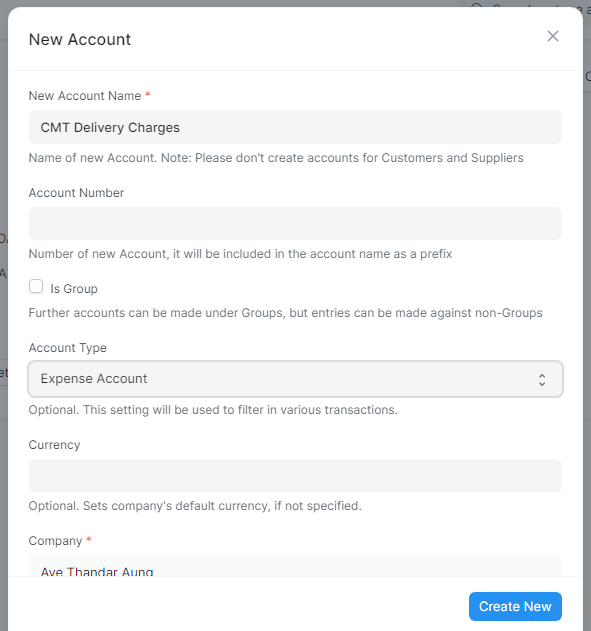
-
New Account Name ကိုထည့်ပါ။
-
Account Number ရှိပါကထည့်ပါ။
-
Account Type တွင် Expenses Account ကိုရွေးပါ။
-
Create ကိုနှိပ်ပါ။
Home >> POS Awesome >> Delivery Charges

- Add Delivery Charges ကိုနှိပ်ပါ။
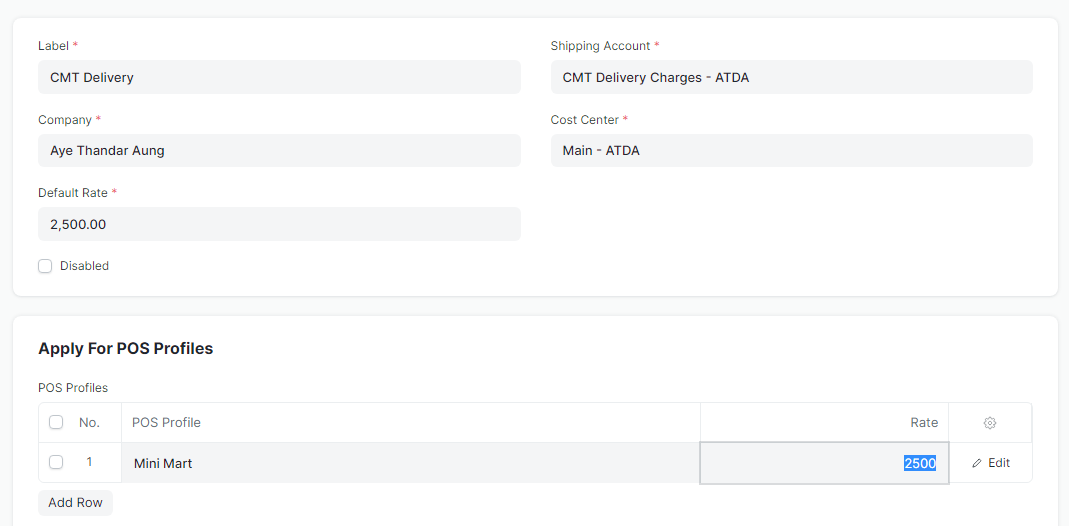
-
Label ထည့်ပါ။
-
Shipping Account တွင် Chart of Account တွင်ထည့်ခဲ့သော Account ကိုထည့်ပါ။
-
Cost Center ရွေးပါ။
-
Apply For POS Profiles ၏ POS Profile တွင် Delivery Charges ကိုအသုံးပြုမည့် POS Profile ကိုထည့်ပါ။
-
Rate ထည့်ပါ။
-
Save ကိုနှိပ်ပါ။
-
ထို့နောက် POS Awesome သို့သွားပါ။
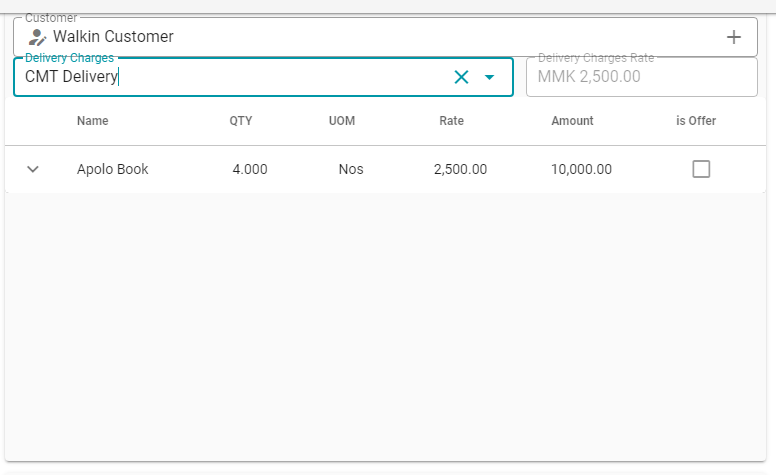
-
Customer ရွေးပါ။
-
Delivery Charges ကိုရွေးပါ။
-
ဝယ်ယူသည့်ကုန်ပစ္စည်းများကိုထည့်ပါ။
-
Payslip ထုတ်ချိန်တွင် Delivery Charges ပါထည့်ပေါင်းသွားသည်ကိုတွေ့ရပါသည်။
-
Chart of Account တွင်ကြည့်ပါကလည်း

- Delivery စရိတ်တိုးလာသည်ကိုတွေ့ရပါသည်။
Last updated 4 months ago
Was this helpful?