Payment Reconciliation
Payment Reconciliation ကို invoice များအား ငွေပေးချေမှုများအတွက် ချိတ်ဆက်အသုံးပြုနိုင်ပါသည်။
Payment Entry / Journal Entry များမှ Customer များမှ ငွေရရှိခြင်း နှင့် ငွေပေချေခြင်းများအတွက် ငွေအဝင်/အထွက်များထည့်သွင်းခဲ့ပြီး ငွေရရှိသည့် Invoice ၊ ငွေပေးချေသည့် invoice များ နှင့်ချိတ်တွဲခဲ့ခြင်းမရှိသည့်အတွက် ဘောင်ချာများတွင် ငွေရရန်ကျန် ၊ ငွေပေးရန်ကျန်စာရင်းများအဖြစ်ပေါ်နေပါက သက်ဆိုင်ရာ ငွေရရှိသည့် Invoice ၊ ငွေပေးချေသည့် invoice များအား ငွေရရှိ(သို့)ငွေပေး ထည့်သွင်းခဲ့သည့် Payment Entry ၊ Journal Entry အစောင်များချိတ်ဆက်ရန် Payment Reconciliation အားအသုံးပြုနိုင်သည်။
Payment Reconciliation ထည့်သွင်းရန်အတွက်
Home > Accounting > Account Receivable (or) Account Payable > Payment Reconciliation
- Party Type တွင် Customer (or) Supplier ရွေးချယ်ပါ။

- Party တွင် Customer (or) Supplier အမည်အားရွေးချယ်ပါ။

-
From Invoice Date & To Invoice Date တွင် Invoice အတွက် ရွေးချယ်လိုသော Date Limit ရှိပါက ရွေးချယ်နိုင်ပါသည်။
-
မဖြစ်မနေရွေးချယ်ရန်မလိုပါ။
-
ရွေးချယ်ပါက သတ်မှတ်ထားသော Date Limit အတွင်းရှိသည့် Invoice များသာပေါ်မည်ဖြစ်ပါသည်။

-
From payment date & To invoice date တွင် Payment အစောင်များအတွက် ရွေးချယ်လိုသော Date Limit ရှိပါက ရွေးချယ်နိုင်ပါသည်။
-
မဖြစ်မနေရွေးချယ်ရန်မလိုပါ။
-
ရွေးချယ်ပါက သတ်မှတ်ထားသော Date Limit အတွင်းရှိသည့် Payment များသာပေါ်မည်ဖြစ်ပါသည်။

-
Minimum Invoice Amount & Maximum Invoice Amount တွင် အနည်းဆုံးနှင့် အများဆုံးကျချင်သည့် Invoice ပမာဏများအား ထည့်သွင်းနိုင်ပါသည်။
-
မဖြစ်မနေထည့်သွင်းရန်မလိုပါ။
-
ရွေးချယ်ပါက သတ်မှတ်ထားသော Amount အတွင်းရှိသည့် Invoice များသာပေါ်မည်ဖြစ်ပါသည်။

-
Minimum Payment Amount & Maximum Payment Amount တွင် အနည်းဆုံးနှင့် အများဆုံးကျချင်သည့် Payment ပမာဏများအား ထည့်သွင်းနိုင်ပါသည်။
-
မဖြစ်မနေထည့်သွင်းရန်မလိုပါ။
-
ရွေးချယ်ပါက သတ်မှတ်ထားသော Amount အတွင်းရှိသည့် Payment များသာပေါ်မည်ဖြစ်ပါသည်။

-
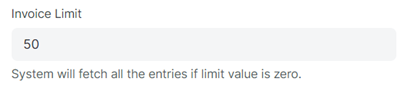
Invoice Limit တွင် ငွေမချေရသေးသည့် ရက်အစမှစတင်၍ အစောင်ရေ 50 အားပြမည်ဖြစ်ပါသည်။
-
Invoice အားလုံးကျလိုပါက Invoice Limit 50 နေရာတွင် 0 ထား၍ Get Unreconciled အားနှိပ်နိုင်ပါသည်။
-
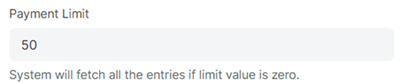
Payment Limit တွင် ငွေမချေရသေးသည့် ရက်အစမှစတင်၍ အစောင်ရေ 50 အားပြမည်ဖြစ်ပါသည်။
-
Payment အားလုံးကျလိုပါက Payment Limit 50 နေရာတွင် 0 ထား၍ Get Unreconcied အားနှိပ်နိုင်ပါသည်။
-
Accounting Dimensions Filter အောက်မှ Cost Center တွင် Invoice & Payment များအား ကျလိုသည့် Cost Center သာရွေးချယ်နိုင်သည်။
-
Cost Center မရွေးချယ်ပါက Cost Center အားလုံးတွင်ရှိသော Invoice & Payment အားလုံးကျမည်ဖြစ်ပါသည်။
-
မဖြစ်မနေရွေးချယ်ရန်မလိုပါ။

-
Unreconciled Entries အောက်မှ
-
Filter on invoice တွင် သိလိုသော Invoice no အားထည့်၍ ရှာဖွေနိုင်ပါသည်။
-
Filter on payment တွင် သိလိုသော Payment no အားထည့်သွင်း၍ ရှာဖွေနိုင်ပါသည်။
-
မဖြစ်မနေရွေးချယ်ရန်မလိုပါ။

- Get Unreconciled Entries ကိုနှိပ်ပါ။
- Allocate လုပ်မည့် Payment (or) Journal အစောင်များနှင့် Invoice အစောင်များအား Select ပေးပါ။

- Allocate နှိပ်ပါ။

- Allocate လုပ်လိုက်သည့် Payment နှင့် Invoice အစောင်များအား Allocated Entries ဇယားတွင်တွေ့ရမည်။

-
Reconcile မလုပ်ခင်အချိန်တွင် invoice များအားကြည့်ပါက ငွေရရန်ကျန်သည့်အတွက် Overdue (or) Unpaid Status အားတွေ့မြင်ရမည်။
-

-
Reconcile နှိပ်ပါ။

- Successfully Reconciled အားတွေ့မြင်ရပါက Invoice များတွင် Allocate လုပ်ပြီးဖြစ်ပါသည်။
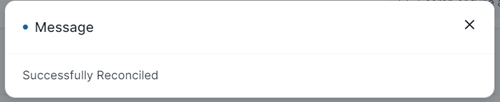
- Successfully Reconciled ဖြစ်သွားပါက Reconcile လုပ်ထားသည့် Invoice များတွင် ငွေကျေပါက Paid Status ပြောင်းသွားကြောင်းတွေ့မြင်ရမည်။
