Common Party Accounting (Link With Supplier)
Customer နှင့် Supplier တစ်ယောက်တည်းဖြစ်နေသည့်အခြေအနေမျိုးတွင် Common Party Accounting ကိုသုံးပါသည်။
Home > Accounting > Accounts Setting
-
Accounts Setting ထဲကိုဝင်ပါ။
-
Enable Common Party Accounting တွင်အမှန်ခြစ်ပြီး Save ကိုနှိပ်ပါ။

Customer ထည့်သွင်းရန်အတွက် Customer ထဲကိုဝင်ပါ။
Home > Accounting > Customer
- Add Customer ကိုနှိပ်ပါ။

-
Customer Name တွင် သက်ဆိုင်ရာ Cusotmer Name ကိုထည့်ပါ။
-
ထို့နောက် Save ကိုနှိပ်ပါ။
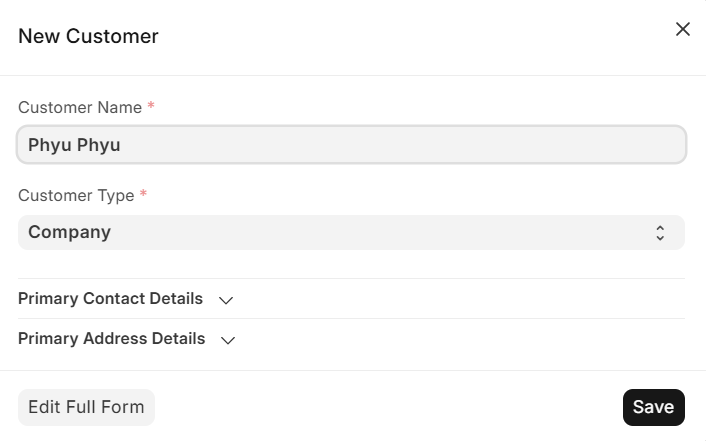
Customer နှင့် Supplier Link ချိတ်မည်ဆိုပါက ထည့်သွင်းလိုက်သည့် Customer ထဲကိုဝင်ပါ။

- Action ကိုနှိပ်၍ Link with Supplier ကိုနှိပ်ရပါမည်။
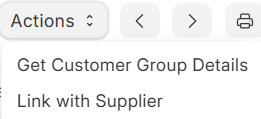
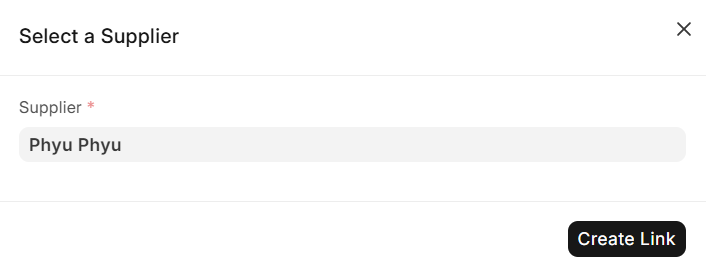
- Select a Suppiler ပေါ်လာပါက Suppiler တွင် Create a New Supplier ကိုနှိပ်ရပါမည်။
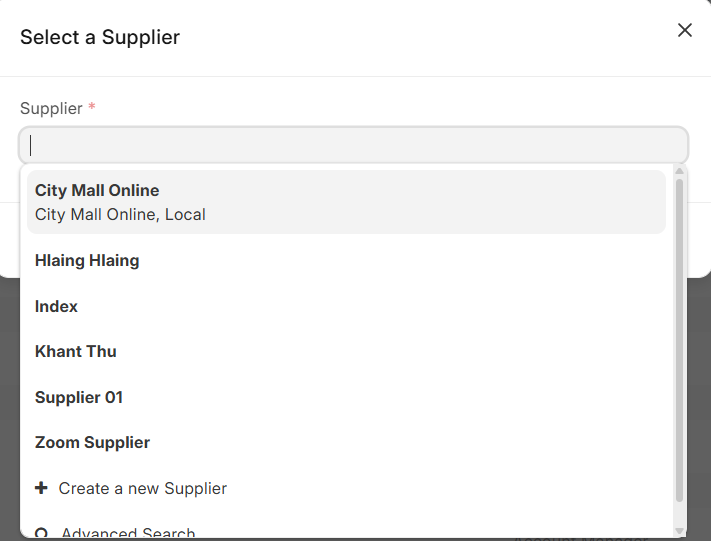
-
Supplier Name ကိုထည့်ပါ။
-
ထို့နောက် Save ကိုနှိပ်ပါ။
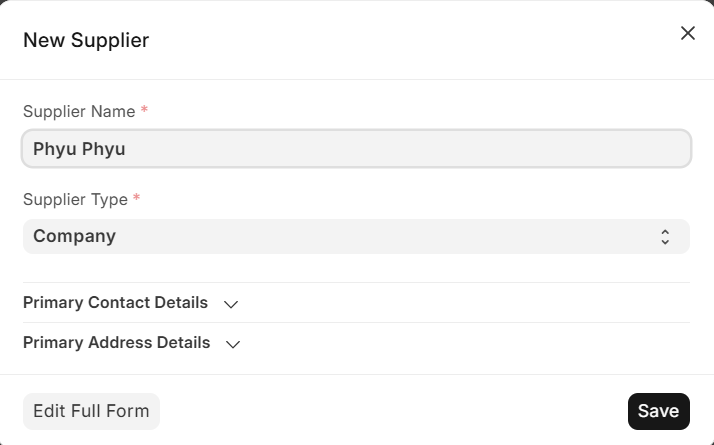
- Create Link ကိုနှိပ်ပါ။
အရောင်းဘောင်ချာထည့်သွင်းရန်အတွက် Sales Invoice ထဲကိုဝင်ပါ။
Home > Accounting > Sale Invoice
- Add Sale Invoice ကိုနှိပ်ပါ။

-
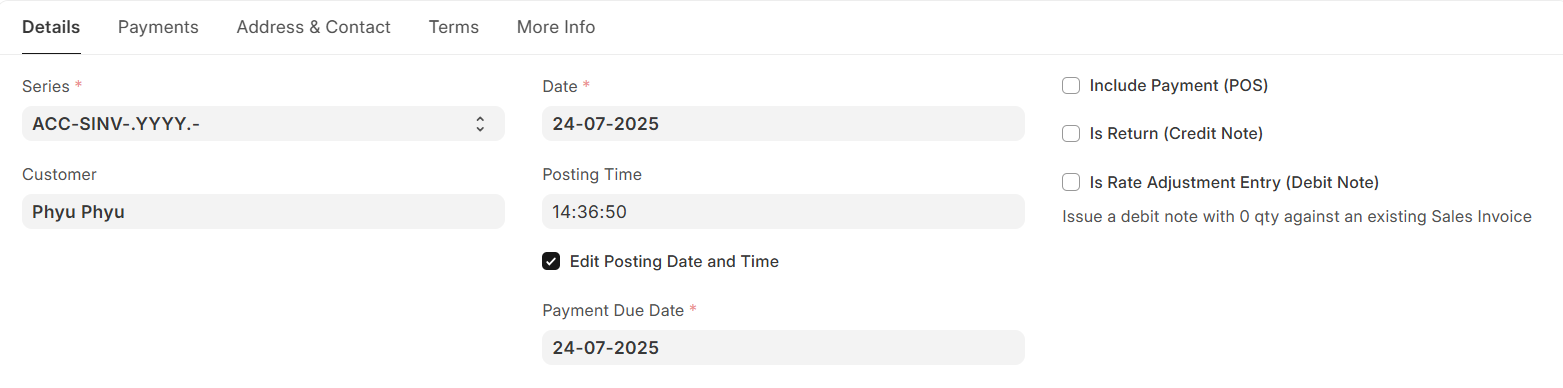
Customer Name ကိုထည့်ပါ။
-
Edit Posting and Time တွင်အမှန်ခြစ်၍ Invoice ဖွင့်သောနေ့ကိုထည့်ပါ။
- ပစ္စည်းတစ်ခါတည်း ထွက်ပါက Update Stock ကိုနှိပ်၍ပစ္စည်းထုတ်မည့် Warehouse ကိုရွေးပါ။

-
Item တွင်ရောင်းမည့်ပစ္စည်းကိုထည့်ပါ။
-
ထို့နောက် Save>> Submit >> Yes ကိုနှိပ်ပါ။

Accounts Receivable တွင်ကြည့်ပါကလည်းရရန်ရှိပေါ်နေသည်ကိုတွေ့ရမည်ဖြစ်သည်။

အဝယ်ဘောင်ချာထည့်သွင်းရန်အတွက် Purchase Invoice ထဲကိုဝင်ပါ။
Home > Accounting > Accounts Payable > Purchase Invoice
- Add Purchase Invoice ကိုနှိပ်ပါ။

-
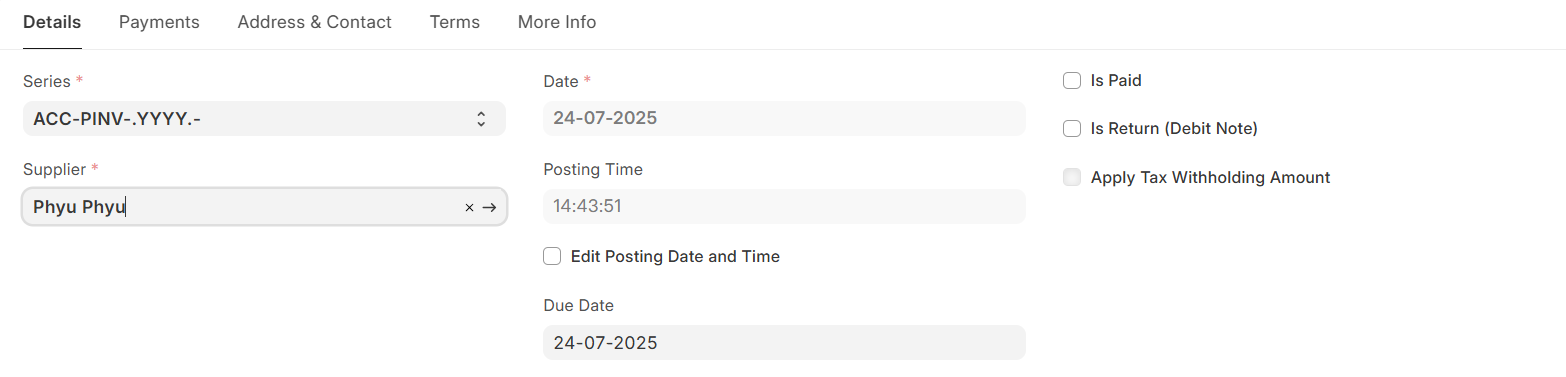
Suppiler ကိုထည့်ပါ။
-
Edit Posting Date and Time ကိုနှိပ်၍ပစ္စည်းဝယ်သောနေ့ကိုထည့်ပါ။
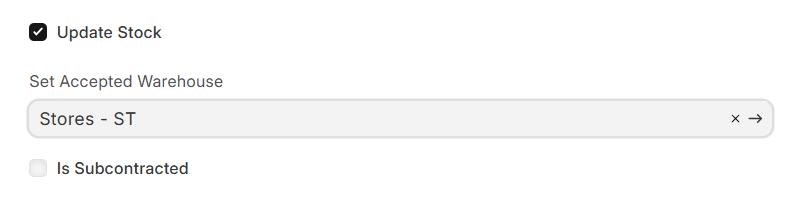
- ပစ္စည်းပါတစ်ခါတည်း ရောက်ပါက Update Stock ကိုနှိပ်၍ Set Accepted Warehouse တွင်ပစ္စည်းထားမည့် Warehouse ကိုရွေးပါ။
-
Item တွင်မှာယူမည့်ပစ္စည်းကိုထည့်ပါ။
-
Accepted Qty တွင် မှာယူသည့်ပစ္စည်း၏ အရေအတွက်ကိုထည့်ပါ။
-
ထို့နောက် Save>> Submit>> Yes ကိုနှိပ်ပါ။

Journal Entry တွင်ကြည့်ပါကလည်း Double Ledger သုံးထားသည့်အတွက်ကြောင့် Journal Entry Auto ဆင်းသွားသည်ကိုတွေ့ရမည်ဖြစ်သည်။

Account Receivable တွင်ကြည့်ပါကလည်း Sales Invoice အစောင်နှင့် Journal Entry မှချေထားသော အစောင်အားအောက်ပါအတိုင်းတွေ့ရပါမည်။

-
ထို Sales Invoice အစောင်နှင့် Journal Entry အစောင်အားချေရန် Payment Reconciliation မှပြန်ချေပေးရပါမည်။
-
Payment Reconciliation ထဲကိုဝင်ပါ။
-
Party Type နေရာတွင် Customer ကိုရွေးရပါမည်။
-
Party နေရာတွင် သက်ဆိုင်ရာ Customer ကိုရွေးပါ။

- Get Unreconcilied Entries ကိုနှိပ်ရပါမည်။

- ချေဖို့ကျန်သည့် Sales Invoice အစောင်နှင့် Journal Entry အစောင်အား တွေ့ရပါမည်။

-
ထိုအစောင်များကို ရွေး၍ Allocate ကိုနှိပ်ရပါမည်။
-
ထို့နောက် Reconcile ကိုနှိပ်ပါ။
Accounts Receivable Report တွင်ပြန်ကြည့်ပါက ရရန်ရှိစာရင်း လျော့သွားသည်ကို အောက်ပါအတိုင်းတွေ့ရပါမည်။
