Repost Item Valuation
Stock Ledger တွင် ပြသော Valuation Rate နှင့် Gross Profit တွင် ပြသော Valuation Rate မှာ မတူခဲ့လျှင် အောက်ပါအတိုင်း စစ်ဆေး၍ အဆင့်ဆင့်ပြုလုပ်ရပါမည်။
(1) Gross Profit တွင် မည်သည့်အစောင်မှဖြစ်သည်ကိုစစ်ဆေးပါ။
(2) Stock Ledger တွင် ထည့်သွင်းထားသော Valuation များကို စစ်ဆေးပါ။
(3) Gross Profit တွင် ပြသော အစောင်နံပါတ်သည် Sales Invoice ဖြစ်ပြီး Stock ထိသည့်အစောင်သည် Delivery Note ဖြစ်နေပါက Sales Invoice နှင့်သက်ဆိုင်သော Delivery Note ကို Repost Run ပေးရမည်။
-
Repost Item Valuation ထဲသို့ဝင်ပါ။
-
Add Repost Item Valuation ကိုနှိပ်ပါ။
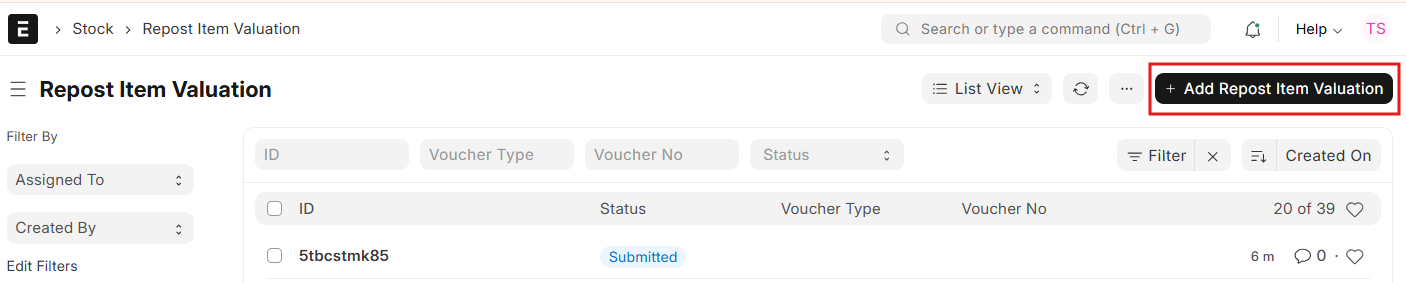
• Repost Item Valuation တွင် Based on Transaction နှင့် Run မည်ဆိုပါက Voucher နံပါတ်ရွေးလိုက်သည်နှင့် Posting Date & Time Auto ကျမည်။
• Repost Item Valuation တွင် Based on Item and Warehouse နှင့် Run မည်ဆိုပါက Item, Warehouse, Date and Time များကို မည်သည့်နေ့မှ စတင်၍ Recalculate လုပ်မည်ကို ရွေးချယ်ပါ။
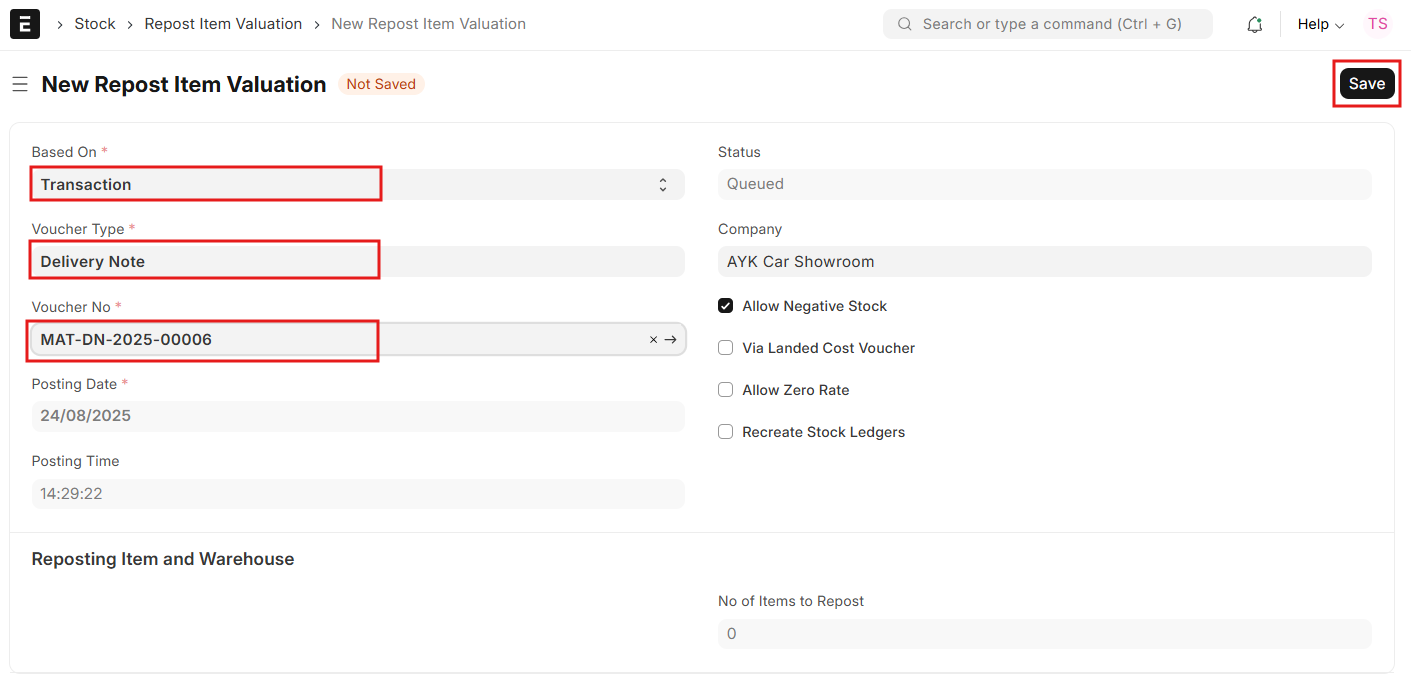
Transaction နှင့် Run နည်း
-
Based On တွင် Transaction ကိုရွေးပါ။
-
Voucher Type တွင် Delivery Note / Purchase Invoice ကို ရွေးပါ။
-
Voucher No ကိုရွေးပါ။
-
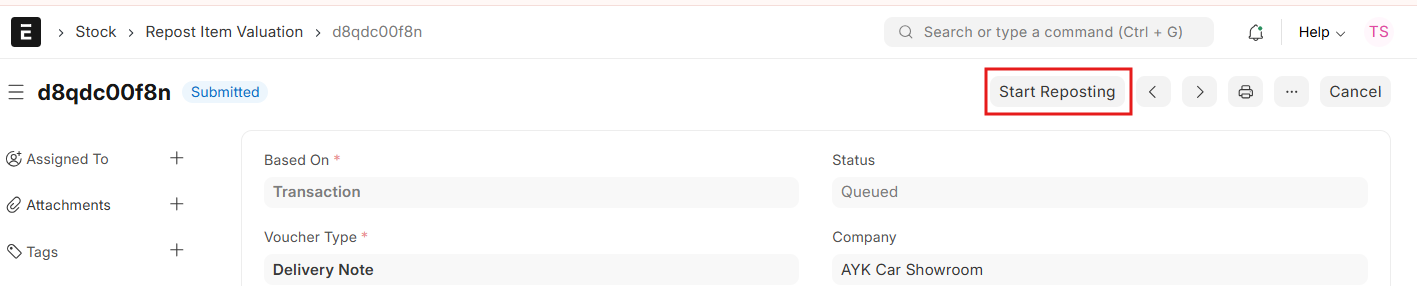
Save, Submit, Yes ကိုနှိပ်ပါ။
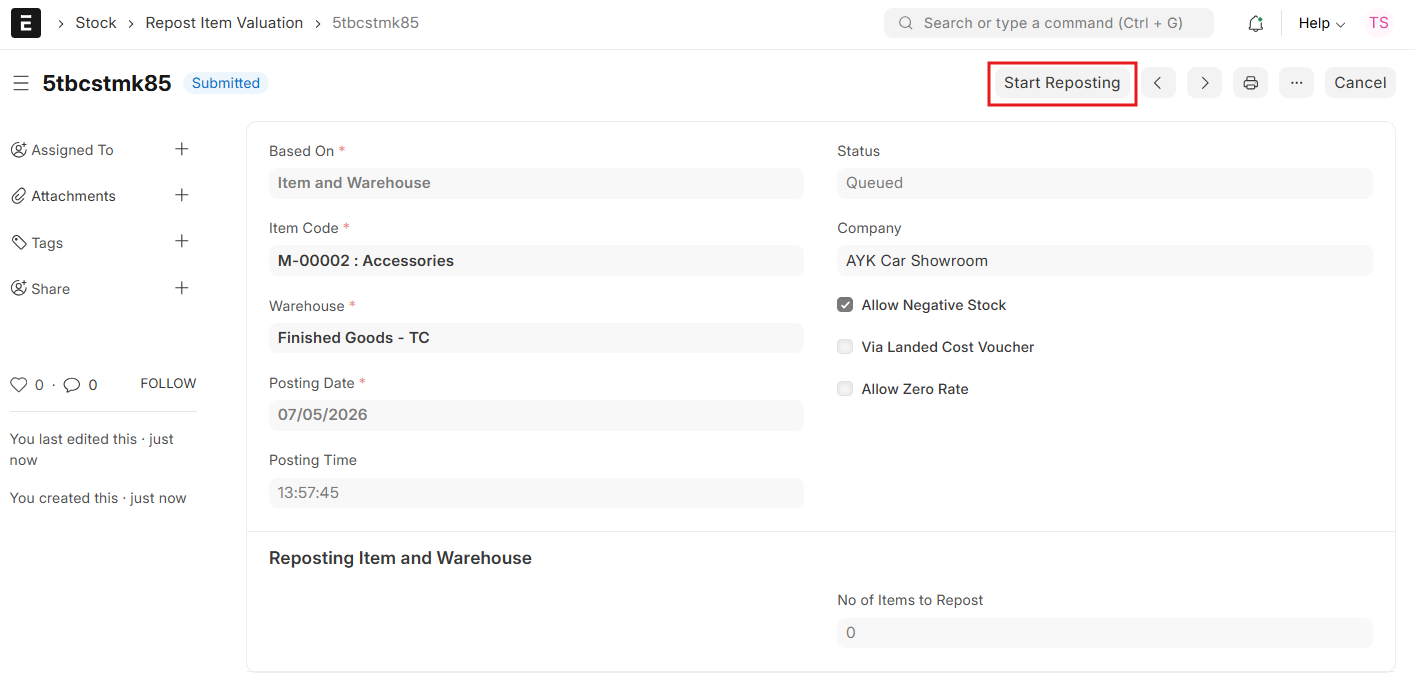
- Start Reposting ကိုနှိပ်ပါ။
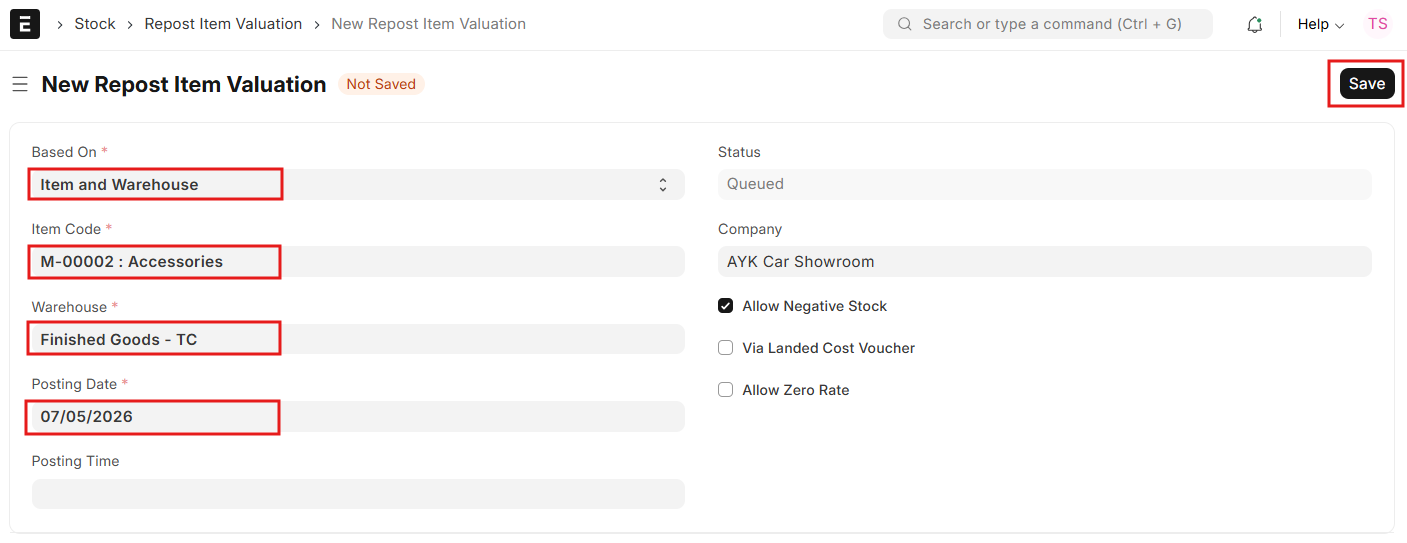
Item and Warehouse နှင့် Run နည်း
-
Based On တွင် Item and Warehouse ကိုရွေးပါ။
-
Item Code ကိုရွေးပါ။
-
Warehouse ကိုရွေးပါ။
-
Posting Date တွင် Stock Balance မှန်ခဲ့သောရက်စွဲကို ရွေးပါ။
-
Save, Submit, Yes ကိုနှိပ်ပါ။
- Start Reposting ကိုနှိပ်ပါ။
- Stock Ledger တွင် ဖော်ပြနေသော Valuation Rate နှင့် Gross Profit တို့ ကို ပြန်လည်၍ စစ်ဆေးနိုင်ပါသည်။