Item Price ဆိုသည်မှာ ကုန်ပစ္စည်းများ၏ရောင်းဈေးအမျိုးမျိုးသတ်မှတ်ရာတွင် Item Price တွင်သတ်မှတ်၍ ရောင်းချနိုင်သည်ဖြစ်ပါသည်။
ပစ္စည်အသစ်၏ဈေးနှုန်းများအားထည့်သွင်းခြင်း
- ပစ္စည်းအသစ်တစ်ခုချင်းအားဈေးနှုန်းထည့်သွင်းခြင်း
- ပစ္စည်းအသစ်အားလုံးအား Excel ဖြင့်ဈေးနှုန်းထည့်သွင်းခြင်း
1)ပစ္စည်းတစ်ခုချင်းအားဈေးနှုန်းထည့်သွင်းခြင်း
Stock > Items and Pricing > Item Price
- Add Item Price ကိုနှိပ်ပါ။

- Item Code တွင် မိမိဈေးနှုန်းအသစ်ထည့်မည့် ပစ္စည်းကိုထည့်ပါ။
- Price List တွင် ပစ္စည်း၏ရောင်းဈေးသတ်မှတ်မည့် Price List ကိုရွေးချယ်ပါ။
Price Listထည့်သွင်းနည်းအသေးစိတ်အား Link ကိုနှိပ်၍ ကြည့်ရှု့နိုင်ပါသည်။
- Rate တွင် ပစ္စည်း၏ဈေးနှုန်းကိုထည့်ပါ။
- Edit Full Form ကိုနှိပ်ပါ။
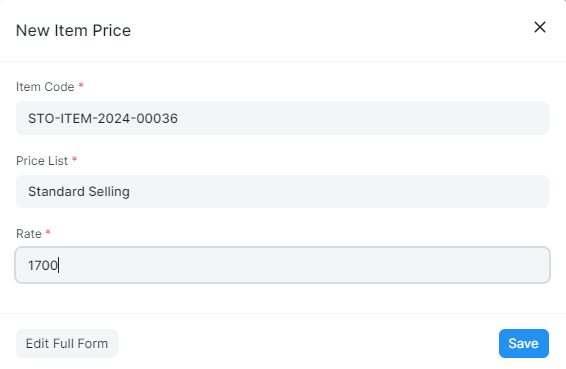
- UOM တွင်ပစ္စည်း၏ Default Unit of Measure ကိုထည့်ပါ။
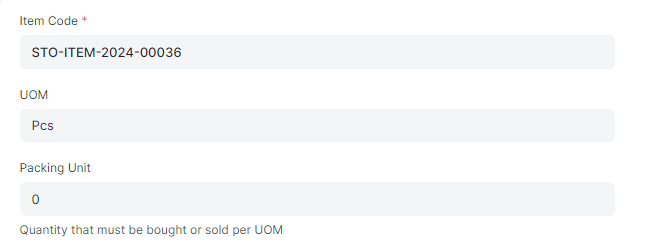
- Valid From တွင် ဈေးနှုန်းအသစ်သတ်မှတ်သည့် Date ကိုရွေးချယ်ပါ။

- Save ကိုနှိပ်ပါ။

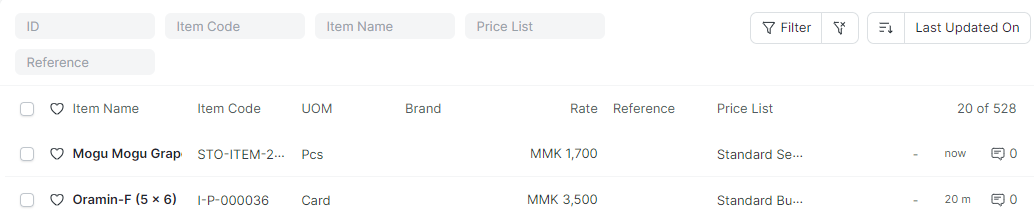
- Item Price တွင် မိမိအသစ်သတ်မှတ်လိုက်သည့် ပစ္စည်း၏ဈေးနှုန်းကို အောက်ပါအတိုင်းတွေ့ရပါမည်။
2)ပစ္စည်းအသစ်အားလုံးအား Excel ဖြင့်ဈေးနှုန်းထည့်သွင်းခြင်း
- Excel ဖြင့် Item Price များအသစ်ထည့်ရန်အတွက် Home ထဲမှ Import Data ကိုနှိပ်ပါ။


- Add Data Import ကိုနှိပ်ပါ။

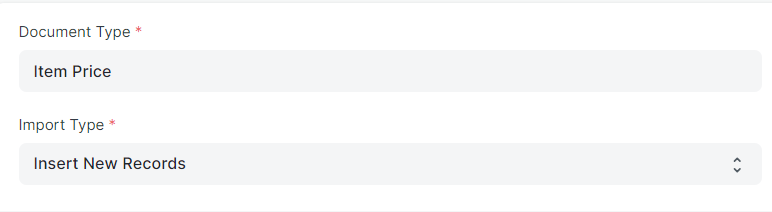
- Document Type တွင် Item Price ကိုရွေးချယ်ပါ။
- Import Type တွင် ဈေးနှုန်းများအသစ်ထည့်ခြင်းဖြစ်သည့်အတွက် Insert New Records ကိုရွေးချယ်ပါ။
- Save ကိုနှိပ်ပါ။
- Download Template ကိုနှိပ်ပါ။
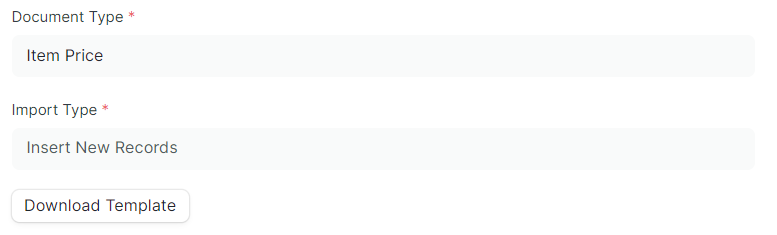
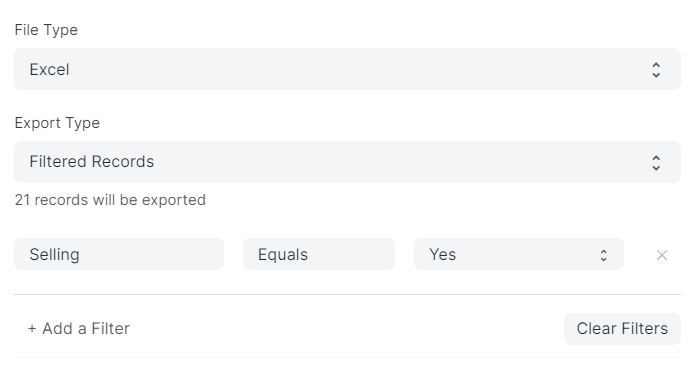
- File Type တွင် Excel ကိုရွေးချယ်ပါ။
- Export Type တွင် Filter Records ကိုရွေးချယ်ပါ။
- မိမိထည့်မည့်ဈေးသည် ရောင်းဈေးထည့်မည်ဖြစ်ပါက Add Filter ကိုနှိပ်ပါ။
- Export Type အောက်တွင် ID အကွက်ကျလာပါက ID နေရာတွင် click နှိပ်၍ selling အားပြောင်းလဲရွေးချယ်ပါ။
- Equals နောက်မှ Blank အကွက်တွင် Yes ရွေးချယ်ပါ။
- Select Fields to Update တွင် Excel ထုတ်လျှင်ပေါ် လိုသော အရာများကို Select ပေးပြီး Export Records ကိုနှိပ်ပါ။
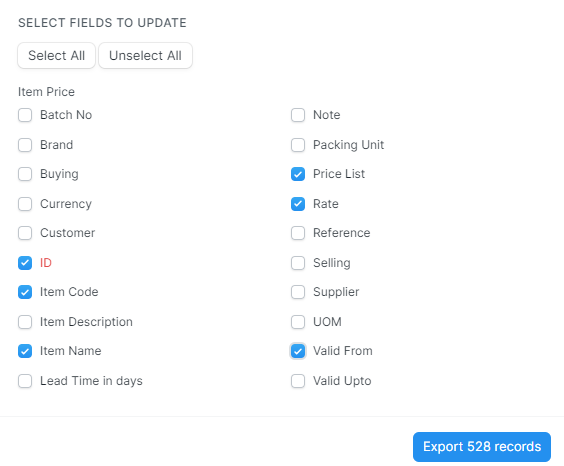
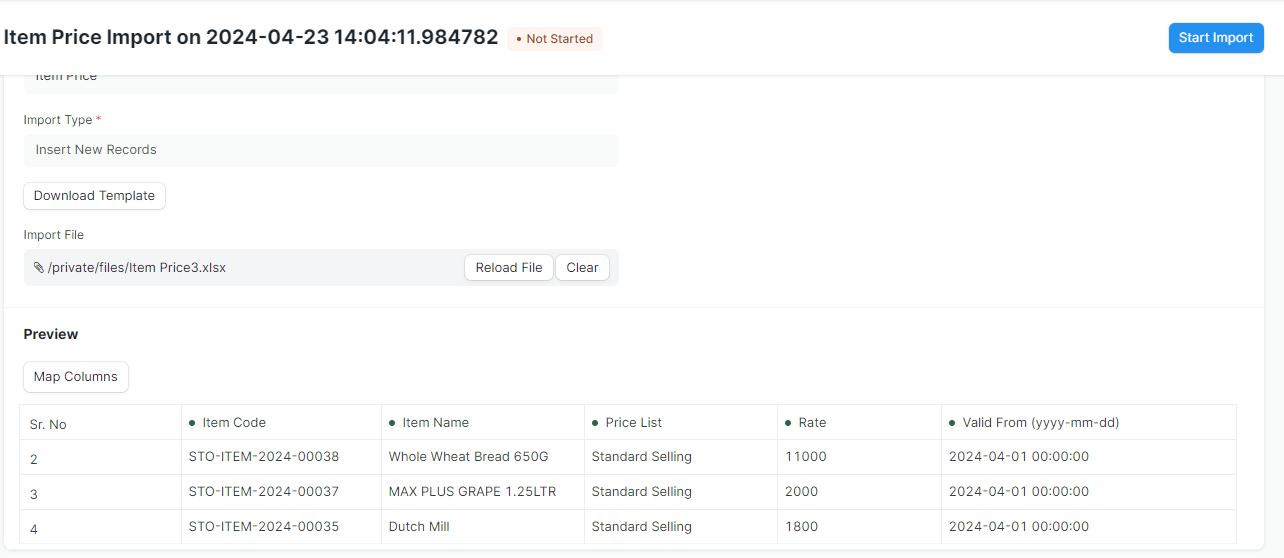
- Download လုပ်ထားသော Excel File တွင်မိမိထည့်လိုသော Item Code/ Item Name / Price List / Rate/ Valid Form များအားထည့်သွင်းပါ။
- Valid Form Date သည် YYYY-MM-DD Format ဖြင့်ထည့်သွင်းပါ။
- Download လုပ်သည့်အချိန်တွင် Valid Up to Column ပါလာပါက Valid Up to Column အားဖြုတ်ပေးရပါမည်။

- Excel File ကို Import ပြန်ထည့်ရန်အတွက် Attach ကိုနှိပ်ပါ။
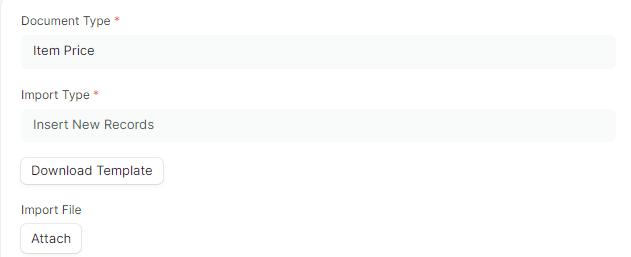
- ဈေးနှုန်းအသစ်ထည့်ထားသည့် Excel File Save ထားသည့် My Device ကိုနှိပ်ပါ။
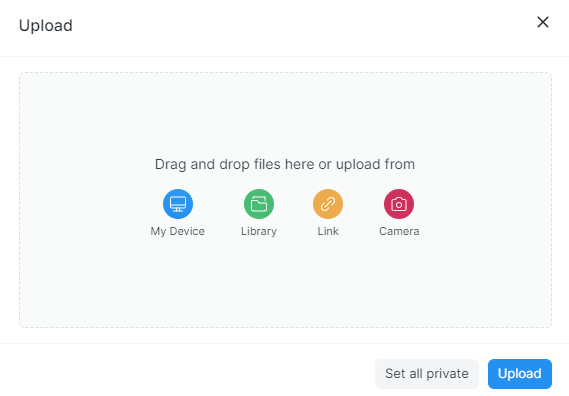
- Excel File ကိုရွေးပြီး Upload ကိုနှိပ်ပါ။
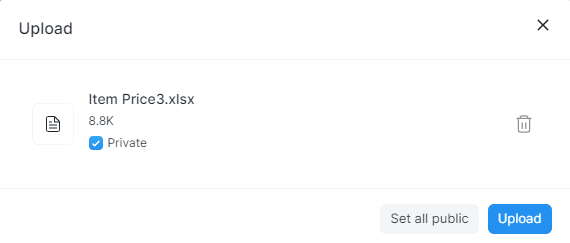
- Upload ကိုနှိပ်ပြီးပါက အောက်ပါအတိုင်းတွေ့ရပါမည်။ ထို့နောက် Start Import ကိုနှိပ်ပါ။
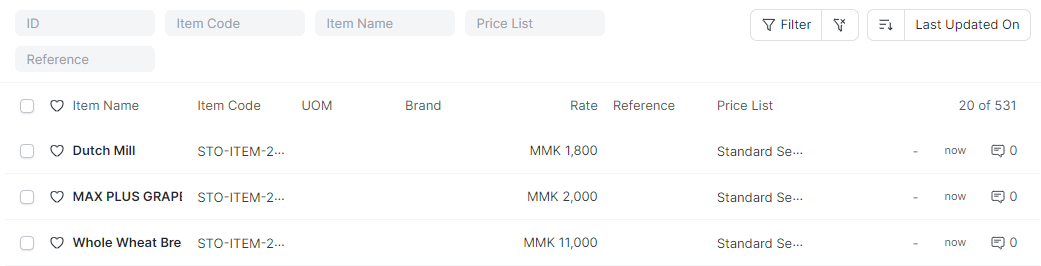
- Item Price တွင်အသစ်ထည့်လိုက်သော Item Price များကိုအောက်ပါအတိုင်းတွေ့ရပါမည်။
Last updated 4 months ago
Was this helpful?