---
title: "New Fixed Asset"
space: "User Manual"
url: "https://docs.bcncl.com/user/manual/new-fixed-asset"
updated: "2026-06-03"
---
### လုပ်ငန်းသုံး ပုံသေပိုင်ပစ္စည်းအဝယ်စာရင်းသွင်းနည်း
Fixed Asset ကို စာရင်းသွင်းလိုလျှင် အောက်ဖော်ပြပါ အဆင့်များကို ပြုလုပ်ရပါမည်။
1. Fixed Asset နှင့် သက်ဆိုင်သော GL များ ဖွင့်ထားရပါမည်။
2. Asset Category သတ်မှတ်ရမည်။
3. Item Group သတ်မှတ်ရမည်။
4. Fixed Asset Item သတ်မှတ်ပြုလုပ်ရမည်။
5. Fixed Asset Purchase ပုံသေပိုင်ပစ္စည်း အဝယ်သွင်းစာရင်းသွင်းခြင်းရမည်။
6. Asset Depreciation Schedules လစဉ် အလိုလျောက်နှုတ်မည့် စာရင်းကို စစ်ဆေးရမည်။
### 1. Chart of Account ဖွင့်နည်း
- Account >>> Chart of Account ထဲသို့ဝင်ပါ။
- View >>> Tree View သို့ပြောင်းပါ။
- မည်သည့် စာရင်းခေါင်းစဉ်ကြီးအောက်တွင် ထပ်တိုးစာရင်း ခေါင်းစဉ်ကို ထည့်မည်ကို ရွေးပါ။
- Add child ကိုနှိပ်ပါ။

- Account Name ရိုက်ထည့်ပါ။
- လိုအပ်ပါက Account Number ရိုက်ထည့်ပါ။
- Account Type ကိုရွေးပါ။
- Create New ကိုနှိပ်ပါ။

မှတ်ချက် - GLဖွင့်လျှင်
- Accumulated Depreciation Account
- Depreciation Account
- Expenses Account တို့ကို ဖွင့်ပေးရပါမည်။
### 2. Asset Category သတ်မှတ်ရမည်။
- Asset >>> Asset Category (သို့မဟုတ်) Search Box မှ Asset Category ကို ရိုက်ထည့်၍ ဝင်ပါ။
- New Asset Category ကိုနှိပ်ပါ။

- Asset Category Name တွင် Fixed Asset ၏ Category Name ကို ရိုက်ထည့်ပါ။ ဥပမာ - Furniture & Fixtures
- Finance Book Detail တွင် Add Row ကိုနှိပ်ပါ။ (Depreciation Method ကို သတ်မှတ်ရန်)
a. Depreciation Method တွင် Straight Line ကိုရွေးပါ။
b. Total Number of Depreciation တွင် 10 နှစ် အသုံးပြုမည်ဆိုပါက (10*12) Furniture & Fixtures အတွက် အသုံးပြုမည့် သက်တမ်းကို ရိုက်ထည့်ပေးရပါမည်။
c. Frequency of Depreciation တွင် (1) ဟုရိုက်ထည့်ပါ။ (တစ်လတကြိမ် လျော့လို၍ ဖြစ်ပါသည်။)
- Accounts တွင်
a. Fixed Asset Account ကို ရွေးရပါမည်။ Chat of Account တွင် ဖွင့်ထားသော စာရင်းနံပါတ် Furniture & Fixtures ကို ရွေးရမည်ဖြစ်ပါသည်။
b. Accumulated Depreciation Account တွင်လည်း သက်ဆိုင်ရာ Accumulated Depreciation Account ကို ထည့်ပေးပါ။
c. Depreciation Expenses Account တွင်လည်း Chat of Account ၏ Expenses တွင် ဖွင့်ထားသော Account ကို ထည့်ပေးပါ။
- Save ပြုလုပ်ပါ။

### 3. Item Group သိမ်းနည်း
- Item Group List ထဲသို့ဝင်ပါ။
- List View မှ Tree View ကိုနှိပ်ပါ။

- All Item Groups ကိုနှိပ်ပါ။
- Add Child ကိုနှိပ်ပါ။

- Is Group ကို အမှန်ခြစ်ပါ။
- Item Group Name ရိုက်ထည့်ပါ။
- Create New ကိုနှိပ်ပါ။

### 4. Fixed Asset Item ထည့်သိမ်းနည်း
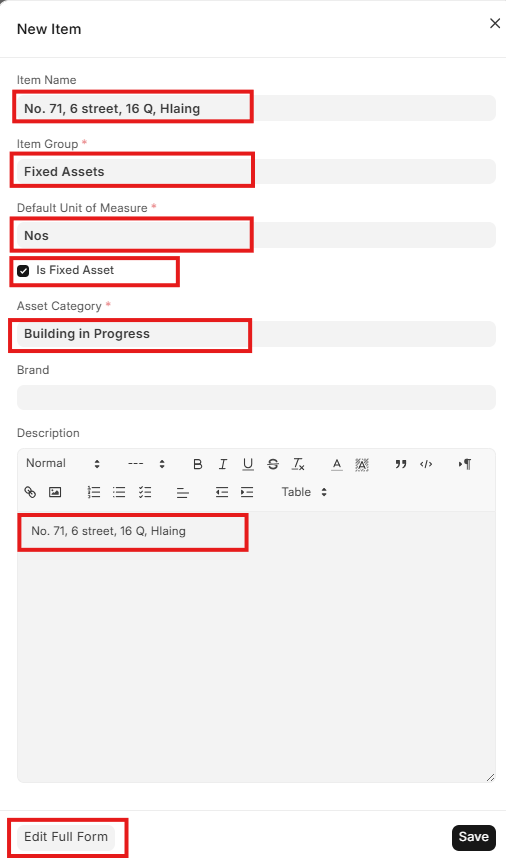
- Item List ထဲသို့ဝင်ပါ။
- Add Item ကိုနှိပ်ပါ။

- Item Name ရိုက်ထည့်ပါ။
- Item Group ရွေးပါ။
- Default Unit of Measure ကို ရွေးပါ။
- Is Fixed Asset ကို အမှန်ခြစ်ပါ။
- Asset Category ကိုရွေးပါ။
- Edit Full Form ကို နှိပ်ပါ။
- 
- Purchase တွင် အဝယ်စာရင်းသွင်းလိုက်သည်နှင့် တပြိုင်တည်း Fixed Asset စာရင်းထဲတွင် စာရင်းအဝင်ပြလိုလျှင် Auto Create Assets on Purchase တွင်အမှန်ခြစ်ပေးခဲ့ရပါမည်။
- Create Grouped Asset ဆိုသည်မှာ တူညီသော ပစ္စည်း ဥပမာ - ဆေးရုံတွင် ကုတင် 10 လုံးဝယ်ယူခြင်းအတွက် အဝယ်စာရင်းသွင်းလိုက်သည်နှင့် ကုတင် 10 လုံး၏ ၏ ဈေးနှုန်းမှ ကုတင်တစ်ခုခြင်း၏ ဈေးနှုန်းနှင့် တွက်၍ ဖော်ပြပေးစေလိုလျှင် အမှန်ခြစ်ပေးခဲ့ရပါမည်။
- Asset Naming Series ကိုရွေးပါ။
- Save ကိုနှိပ်ပါ။

### 5. Fixed Asset Purchase ထည့်နည်း
- Purchase Invoice >>> Add Purchase Invoice ကိုနှိပ်ပါ။
- Add Purchase Invoice ကိုနှိပ်ပါ။

- Supplier ကိုရွေးပါ။
- Date တွင် Fixed Asset ကို ဝယ်သော နေ့ကိုရွေးပေးပါ။
- Update Stock ကိုအမှန်ခြစ်ပါ။
- Warehouse ကို ရွေးပေးပါ။
- Items တွင် ဝယ်ယူသော Item, Qty, Rate ကုန်ပစ္စည်းကို ရွေးပါ။
- Edit (ခဲတံပုံ) ကိုနှိပ်ပါ။

- Asset Location တွင် Fixed Asset ထားမည့် နေရာကိုရွေးပါ။
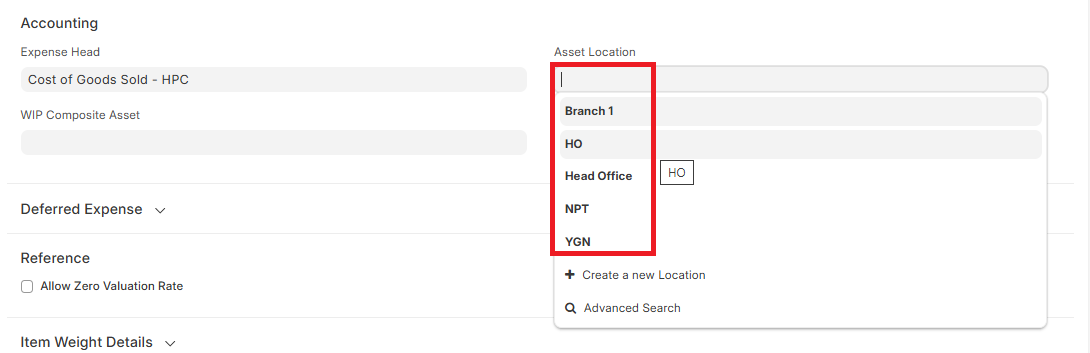
- Save, Submit, Yes ကိုနှိပ်ပါ။
- အကယ်၍ Service Charges ထည့်လိုပါက Add Row ကိုနှိပ်၍ ထည့်နိုင်ပါသည်။
- Service အတွက် အချက်အလက်များကို ထည့်ပေးနိုင်ပါသည်။
- Save, Submit, Yes ကိုနှိပ်ပါ။
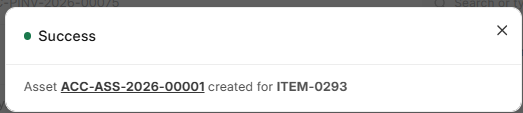
- Asset >>> Asset ထဲတွင် Status တွင် Draft အနေဖြင့် ပြနေပါမည်။
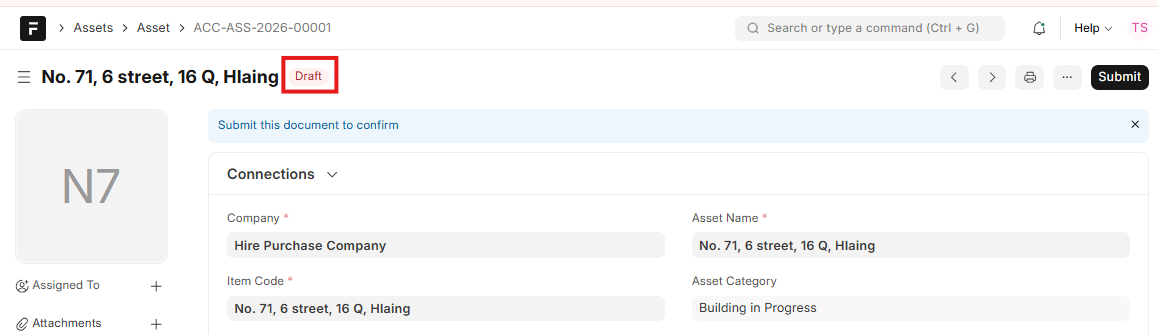
- Fixed Asset Record ကို Select ပြုလုပ်ပါ။
- Asset Owner ရွေးပေးပါ။
- Available for use Date တွင် စတင်အသုံးပြုသော ရက်စွဲကို ရွေးပေးပါ။

- Depreciation အောက်ရှိ Calculate Depreciation တွင် အမှန်ခြစ်ပေးပါ။
- Depreciation Method တွင် Straight Line ကိုရွေးပါ။
- Total Number of Depreciations တွင် အသုံးပြုမည့် လအရေအတွက်ရိုက်ထည့်ပါ။
- Frequency of Depreciation (Months) တွင် 1 ကိုရိုက်ထည့်ပါ။ တစ်လ တကြိမ် စာရင်းလျော့လို၍ ဖြစ်ပါသည်။
- Depreciation Posting Date တွင် လကုန်ရက်ကို ရွေးပါ။

- Finance Books တွင် Asset Category တွင် သတ်မှတ်ခဲ့သည့်အတိုင်း ဖော်ပြပေးနေပါမည်။
- Total Number of Depreciation တွင် အသုံးပြုမည့် သက်တမ်းကို ပြင်ပေး၍ ရပါသည်။
- Depreciation Posting Date တွင် စာရင်းစလျော့လိုသော ရက်စွဲကို ရွေးပေးပါ။
- Save ပြုလုပ်ပါ။

- Asset Depreciation Schedules created ဟု Message ပြုလျှင် Depreciation ကို လအလိုက် မည့်ကဲ့သို့ လျော့မည်ကို စစ်ဆေးရန်အတွက် Voucher No. ကိုတစ်ချက်နှိပ်ပါ။

- Asset Depreciation Schedules ကိုစစ်ဆေး၍ရပါမည်။ လစဉ် စာရင်းလျော့မည့် Transaction ဆင်းမည့် ပမာဏနှင့် ရက်စွဲတို့ကို ပြပေးပါမည်။ ရက်စွဲနှင့် ငွေပမာဏများ စစ်ဆေး၍ မှန်လျှင်
- Back ကိုတစ်ချက်နှိပ်ပါ။
- Submit, Yes ပြုလုပ်ပေးပါ။
## Existing Assets
1. Asset Category ရှိ / မရှိ စစ်ဆေးရန်။
2. Fixed Asset Item Group ရှိ / မရှိ စစ်ဆေးရန်။
3. Fixed Asset Item ထည့်သွင်းရမည်။
4. Fixed Asset Opening ထည့်သွင်းရမည်။
5. Opening Journal Entry ထည့်သွင်းပေးရပါမည်။
1 မှ 3 ထိမှာ အထက်တွင် ဖော်ပြထားပြီးသား ဖြစ်ပါသည်။
## 4. Existing Fixed Asset Opening ( ရှိပြီးသား Fixed Asset များကို Opening ထည့်နည်း)
- Asset >>> Asset >> Add Asset ကိုနှိပ်ပါ။
- Item Code ရွေးပါ။
- Asset Name တွင် Fixed Asset အမည်ကို ရိုက်ထည့်ပါ။
- Asset Owner တွင် Company ကိုရွေးပါ။
- ရှိပြီးသား Stock ဖြစ်သည့်အတွက် Is Existing Asset တွင် အမှန်ခြစ်ပါ။
- Location ရွေးပေးပါ။ ယခု Fixed Asset ကို ထားမည့်နေရာကို ဆိုလိုပါသည်။
- Purchase Details ရှိ Purchase Date တွင် Fixed Asset ဝယ်ယူသော ရက်စွဲကို ရွေးပါ။
- Available for use date တွင် အဆိုပါ Fixed Asset ကို စတင်၍ အသုံးပြုသော ရက်စွဲကို ရွေးပါ။
- Net Purchase Amount ဝယ်ယူသော အရေအတွက်ပေါ်မူတည်၍ ကုန်ကျငွေ စုစုပေါင်းကို ရိုက်ထည့်ရပါမည်။
- Asset Quantity တွင် ဝယ်ယူလိုက်သော အရေအတွက်ကို ရိုက်ထည့်ပါ။

- Depreciation တွင် စာရင်းလျော့ခြင်းအား တွက်လိုလျှင်
- Calculate Depreciation တွင် အမှန်ခြစ်ပါ။
- Opening Accumulated Depreciation ဆိုသည်မှ ယခင်အသုံးပြီးသော သက်တမ်းအတွက် Depreciation ပြုလုပ်ထားသော ပမာဏ ရှိပါက ရိုက်ထည့်ပေးရပါမည်။ (Total Purchase Amount / Useful Life) * Use Total Months ဖြစ်ပါမည်။
- Opening Number of Booked Depreciation တွင် ယခုအသုံးပြုပြီးသော Useful Life အရေအတွက်ကို လနှင့် တွက်၍ ရိုက်ထည့်ရပါမည်။
- Depreciation Posting Date တွင် စာရင်းလျော့လိုသော Transaction Date ကိုရွေးပါ။ End of Month
- Save ကိုနှိပ်ပါ။
- Asset Depreciation Schedule ကိုနှိပ်ပါ။ Save ပြုလုပ်ထားသော Record ကို မြင်ရပါမည်။ အချက်အလက်အားလုံး မှန် / မမှန် စစ်ပါ။ မှန်ပါက
- Submit, Yes ကိုနှိပ်ပါ။
- Asset ရှိ Code ကို နှိပ်ပါ။
- Fixed Asset Register Repot ကို စစ်နိုင်ပါသည်။
